Model and part information
Import geometry, part names and available assembly structure. The quality and completeness of that context depend on the supplied model.
CAD to work instructions
CAD to work instructions means reusing the 3D model of a product to show each step of a task instead of describing it. In TwinWorks, manufacturing engineers and technical authors import a supported model, draft the text from reference PDFs, author or review the linked part actions, and have experts verify the method before release.
Bring a supported model, the task method and relevant reference instructions. STEP/STP import is beta.
Start with your sources
Import geometry, part names and available assembly structure. The quality and completeness of that context depend on the supplied model.
Supply the intended method and reference PDFs for AI procedure drafting. Add requirements that are missing from the sources, including tools, safety information and acceptance criteria.
Receive an editable procedure with authored or reviewed part actions, views and annotations. Experts review and approve the sequence and technical content before operators use it.
From source to instruction
Who checks what?
| Stage | TwinWorks helps prepare | Your team establishes or checks |
|---|---|---|
| Model import | Geometry, part names and available assembly structure. | Units, fidelity, missing parts and whether the model contains the context needed for the task. |
| Procedure drafting | Editable procedure text grounded in reference PDFs. | The intended method, source coverage, missing facts, tools, warnings and acceptance criteria. |
| Visual authoring | Part links, editable states and CAD-aware assistant proposals. | The selected parts, views, movement, sequence and physical feasibility of each action. |
| Review and release | An instruction your authors can edit and prepare for publication. | Expert approval of the complete task and the intended operator setup before use. |
For a document-first example, see how to turn a PDF SOP into a reviewed instruction. For the broader operator workflow, inspect the published viewer example.
Inspectable example
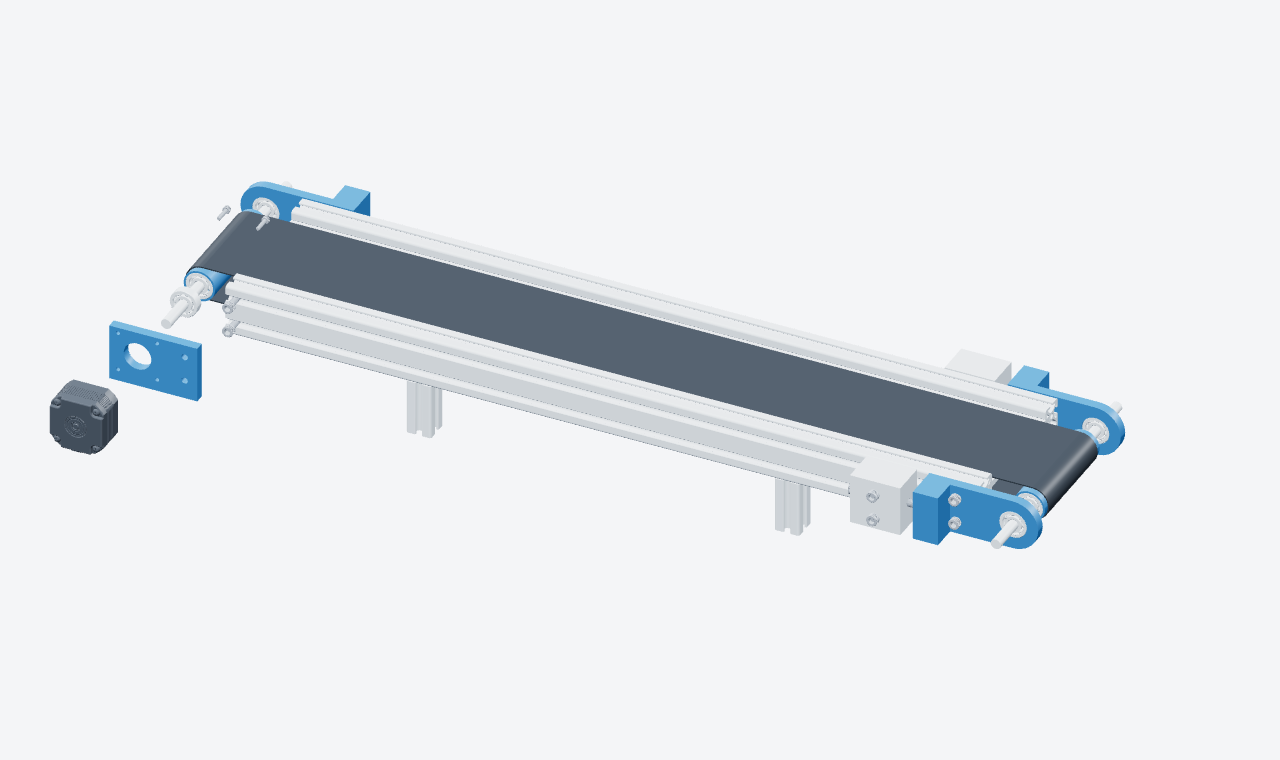
The input is a conveyor model with a motor bracket, drive motor and four mounting screws. The example task is fitting that drive assembly. Its three visual steps are authored for this website; they are not output from a live CAD-to-procedure generation call.
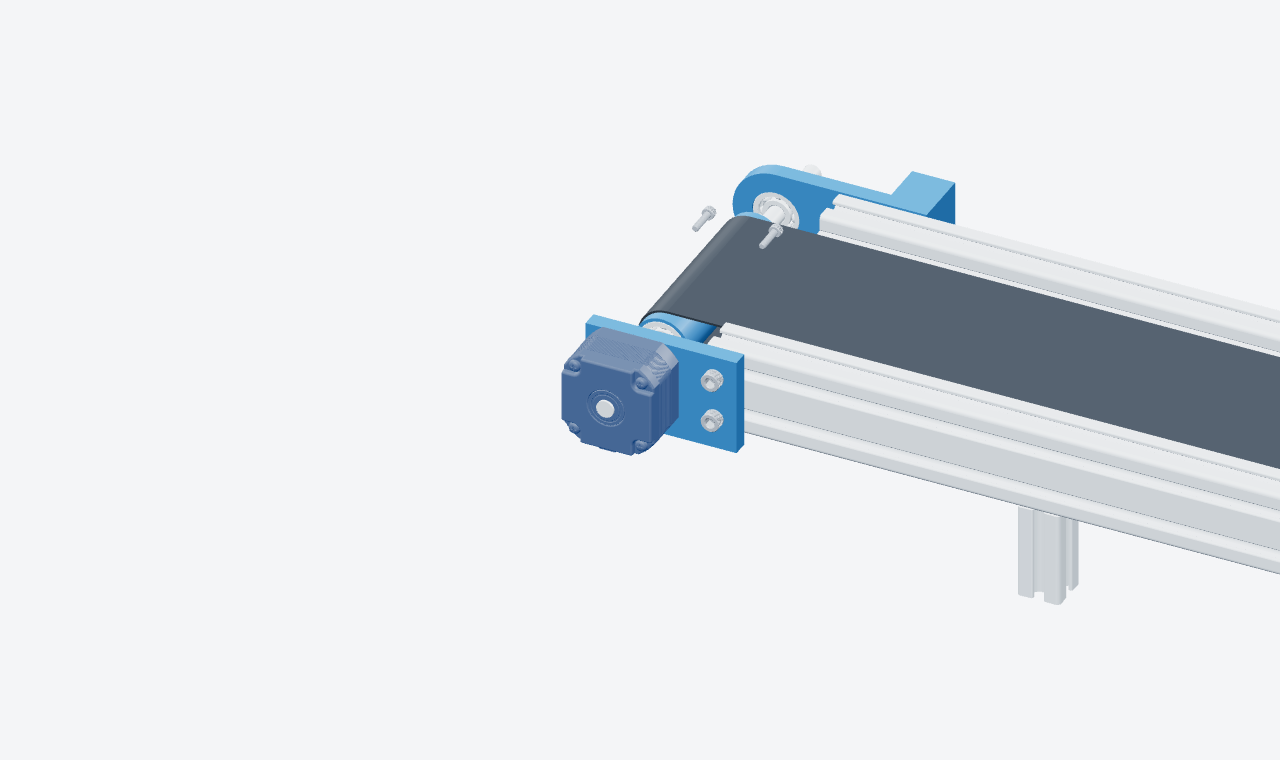
Example part list: conveyor frame → motor bracket → drive motor → four mounting screws. These are the named parts used by this authored example, not a screenshot of an import result.
An expert must check the actual sequence, access, tools and safety requirements for the equipment. The website example is not an approved shop-floor instruction.
Play the interactive conveyor assembly example · Explore visual maintenance instructions
3D inputs
Test a representative model, including companion files and assembly structure. Import support does not establish procedure correctness or a collision-free assembly method.
| Format | Status | Use |
|---|---|---|
| OBJ and FBX | Available | Import geometry for visual step authoring. |
| GLB | Available | Import a self-contained binary 3D file. |
| GLTF | Self-contained or packaged | Import a self-contained file, or use a ZIP package when companion files are required. |
| USDZ | Available | Import a packaged 3D file. |
| STEP and STP | Beta | Convert a part or an assembly with its product structure. Test a sample assembly first. |
| ZIP package | For STEP and GLTF | Bundle a STEP assembly, or a GLTF file with its companion files. |
Have a STEP assembly to hand? Animate its mechanism and explode it with the free tool, online and with no account. New to exploded views? Read what an exploded view is.
A practical evaluation
One representative model, relevant reference PDFs and a short task with a known correct sequence.
Compare imported parts and structure with the source. Inspect draft coverage and the visual changes your author must make.
Record authoring and review effort, missing source facts and operator clarity. Agree acceptance criteria for the pilot.
Before your pilot
Import a supported model for geometry, part names and available assembly structure. Supply the task method and reference PDFs for AI procedure drafts. Authors create or review the visual actions, check the sequence and technical requirements, and publish the reviewed instruction.
OBJ, FBX, GLB, self-contained GLTF and USDZ are supported. STEP and STP import is in beta. Use ZIP for STEP assemblies or GLTF companion files, and evaluate a representative model before a pilot.
AI can draft procedure text from reference PDFs. A CAD-aware assistant can propose editable part states and step changes. Authors supply or verify the task sequence, geometry links, visual actions, tools, warnings and acceptance criteria before release.
Geometry and part metadata provide visual context. A usable procedure also needs a task method and technical requirements from reference instructions or experts. Review each draft and its visual actions; do not treat a model import or an assistant proposal as a validated procedure.
Bring a representative model, reference PDFs and a short task with a known correct sequence. Compare import fidelity, draft coverage, visual editing effort and expert review effort. A procedure can also be authored without a 3D model.
Yes. In the procedure editor, Export as video plays the steps in order and records the 3D view in your browser. The file is an MP4, or a WebM where the browser cannot make MP4. It shows the parts moving, without step text or labels, and needs a 3D model.
Bring the source material your team uses today. Review what the model imports, what the draft covers and what your authors need to complete.
Updated