Drop in a STEP file
STEP and STP assemblies up to 100 MB. We delete your file and the model when you leave the page.
STEP viewer
Free online 3D viewer for STEP files. Drop in your assembly: browse its parts and materials, switch to the realistic view and save the picture.
What the tool does
STEP viewer is a free online 3D viewer for CAD assemblies. Drop in an assembly exported as STEP or STP and it opens in 3D in your browser, with its parts tree as it was exported. Click a part to see its materials, hide it, or show it alone. The realistic view lights the model like a photo studio, and Save picture downloads it as a PNG. Free, online, no account or CAD software needed.
STEP and STP assemblies up to 100 MB. We delete your file and the model when you leave the page.
The tree shows each sub-assembly with its parts under it. Click a part to see its materials, hide it or show it alone.
Switch to the realistic view, keep the view still for a few seconds, and download the clean picture as a PNG.
Need the list of parts? Open STEP to parts list. To watch the same file come apart and move, open Animate.
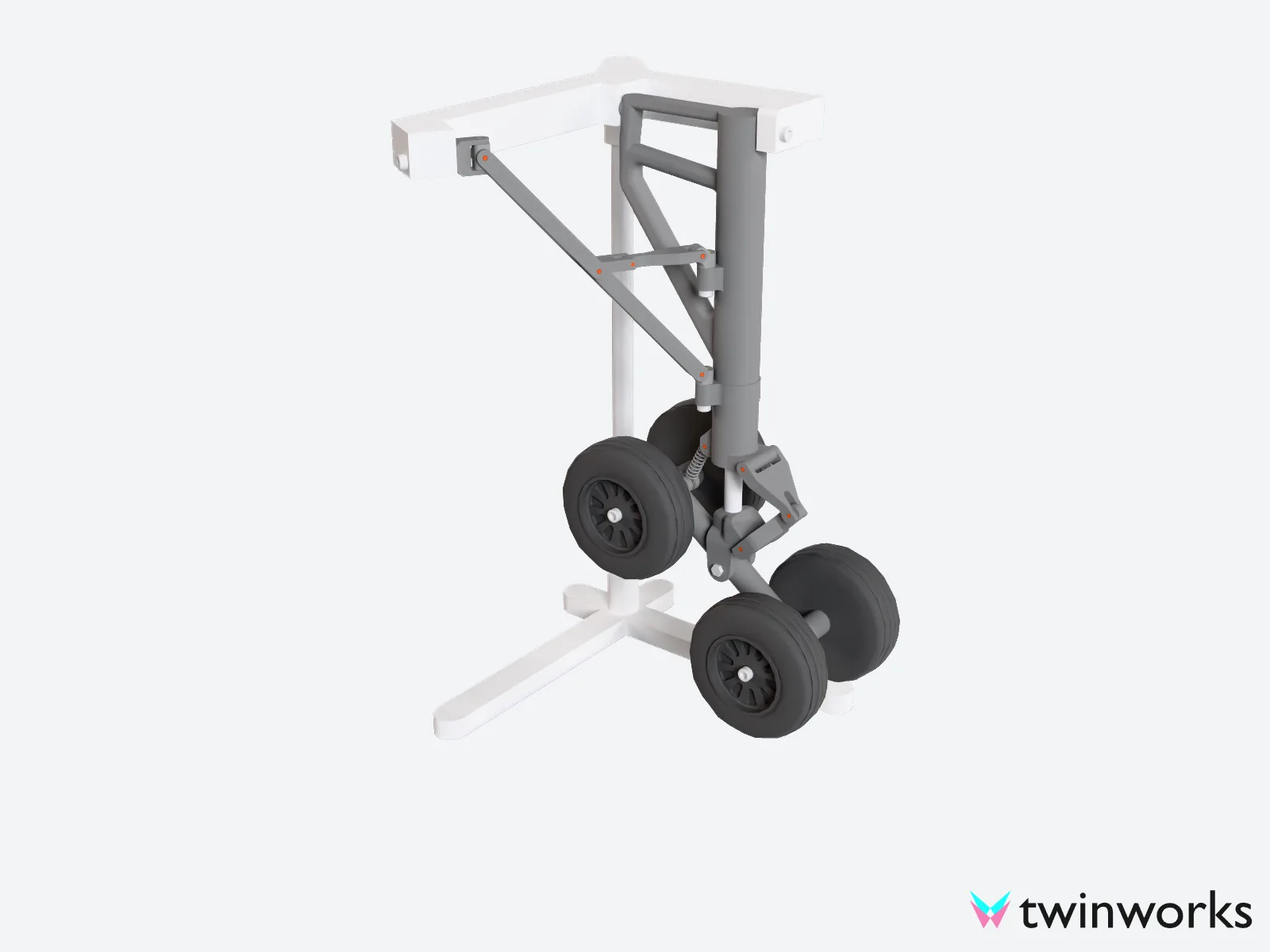
Realistic view
The realistic view traces the light on your model as a photo studio would. Turn the view and it starts again; stop, and in a few seconds the picture is clean. It needs WebGPU, in a recent Chrome, Edge or Safari.
Try it on your STEP fileYes, this one. Drop in a STEP or STP assembly up to 100 MB, with no account. You see it in 3D with its parts tree and the materials of each part, and you can save a realistic picture as a PNG.
Your STEP file is uploaded so our servers can read it. We delete it, with the model, when you leave the page: within five minutes if your browser cannot tell us, and within one day in every case. Our storage then keeps a protected old copy for up to 7 more days, which no link can reach. Pictures are made in your browser and never sent to us. Your file is never used to train AI.
Every part and sub-assembly in your STEP file, in 3D and in a tree, with the names it was exported with. Click a part, in the view or in the tree, to see its materials: name, colour, metalness and roughness. Hide a part, show it alone, or show everything again.
Click Realistic. The first time, the viewer prepares the model for a few seconds. Then the picture becomes clean while the view stays still. Click Save picture to download it as a PNG with the TwinWorks mark. The realistic view needs WebGPU, in a recent Chrome, Edge or Safari. Other browsers show the plain view.
Yes, in the TwinWorks app. Click View in AR and sign up, then confirm your email within 20 hours of sending your file: the model goes to your TwinWorks workspace, where you open it in AR on a phone or tablet. If you leave the page without signing up, we delete it.
Yes. No account needed, and you can save as many pictures as you like. To keep the model or see it in AR, sign up and it goes to your workspace.
In your own workspace the model stays, opens in AR, and becomes work instructions and manuals.
Updated